Why Do Your AI Images Keep Looking Messy?
You spend ten minutes thinking of the perfect prompt for your art. You type it in with excitement, click generate, and wait with high hopes. But when the image appears, your character has six fingers on one hand.
Or maybe there is a strange, blurry blob floating in the background of your beautiful portrait. Sometimes, random gibberish text ruins an otherwise beautiful piece of digital art. This is a common struggle that can quickly drain your creative energy.
Many creators feel stuck when their favorite generators produce strange mutations and weird artifacts. You might feel like you have no control over the final output. It is frustrating to watch a great concept get ruined by minor, ugly mistakes.
The good news is that you do not have to accept these flaws. You can guide the AI to avoid these common errors before it even starts rendering. By telling the system what to leave out, you gain real control over your creative process.
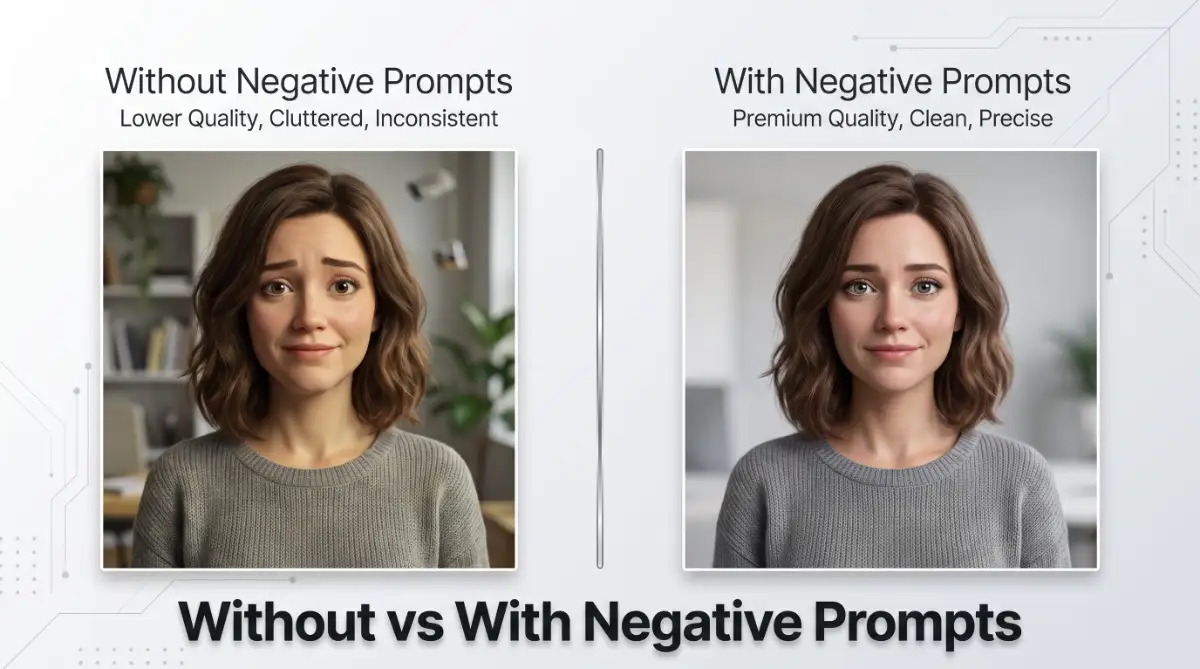
Understanding the Power of Negative Prompts
To fix this problem, we need to look at how AI image generators actually think. When you write a standard prompt, you are telling the generator what to add to the canvas. A negative prompt does the exact opposite by telling the engine what to avoid.
Think of it like ordering a meal at a nice restaurant. You do not just tell the waiter what you want to eat. You also tell them to leave out the onions or the mushrooms if you do not like them.
Negative prompting works as a strong filter for your digital canvas. It guides the neural network away from specific patterns, shapes, and textures during the rendering process. This simple adjustment saves you hours of manual editing and tedious cleanup work.
How Different Generators Handle Negative Prompts
Not every AI art tool uses the same method for negative prompts. Let us look at how the most popular tools handle these instructions so you can use them correctly.
Stable Diffusion:
Stable Diffusion has a dedicated box built specifically for negative prompts. This makes it incredibly easy to separate what you want from what you do not want. You can type words like "deformed hands" or "blurry background" directly into this box to clean up your image.
Midjourney:
Midjourney uses a special text command instead of a separate input box. To exclude something, you need to add --no at the very end of your prompt. For example, typing a forest path --no trees tells the system to create a path without any trees.
DALL-E 3:
DALL-E 3 does not have a formal negative prompt box or command. Instead, you must use descriptive English to explain what should be missing. You can write phrases like "a clean sky with no clouds" or "a room without any furniture" to achieve your goal.
Myth vs Reality in AI Prompting
Myth about AI Art The Actual Reality AI will automatically know to make clean hands.AI often struggles with complex anatomy unless you guide it. Longer negative prompts always make images better. Too many negative words can confuse the AI and ruin the style. You need to use advanced code to filter images. Simple, clear English words work best for most generators.
Simple Steps to Build an Effective Negative Prompt
Creating a great negative prompt does not require complex coding skills. You just need a clear strategy to identify and list the elements you want to avoid. Let us walk through the process together.
Step 1: Identify Visual Distractions
Before you write your negative prompt, look closely at your previous test images. Note down any recurring issues like weird shadows, extra limbs, or low quality textures. These specific issues will form the foundation of your negative prompt list.
Step 2: Use Clear and Specific Terms
Avoid using vague words that might confuse the machine. Instead of typing "bad stuff," use specific terms like "blurry," "cropped," or "watermark." Clear terms help the generator understand exactly what patterns to block.
Step 3: Keep Your List Organized
Group your negative terms into logical categories such as quality issues, anatomical errors, and unwanted objects. This keeps your workflow clean and makes it much easier to edit your prompts later.
Pro Tip: Avoid Prompt Overload
Do not copy and paste massive lists of fifty negative words into your prompt. This can dilute the main prompt and make your final image look flat or boring. Stick to five or six highly relevant negative terms for the best results.
Smart Tricks for Common Art Styles
Different art styles require different negative prompts to look their best. A setting that works for a realistic photo might ruin a cute cartoon drawing. Let us break down how to apply these rules to different styles.
Fixing Realistic Photos
When you want a photorealistic look, you must tell the AI to avoid plastic skin and fake lighting. Common negative terms for photos include "3D render," "cgi," "smooth skin," and "drawing." These terms force the model to stick to realistic camera textures.
Cleaning Up Digital Illustrations
For clean vector art or anime styles, you want to avoid realistic textures and messy sketch lines. Use negative terms like "photorealistic," "rough sketch," "noisy," and "gradients." This keeps your lines sharp, flat, and highly professional.
The Anatomy Fix: How to Get Clean Hands and Faces
The most common complaint in AI art is the occurrence of mutated hands and distorted faces. This happens because human hands are highly complex, and the AI does not always understand how joints work. You can use specific negative terms to guide the AI toward correct human anatomy.
Standard Anatomy Filters
To fix human figures, try adding words like "extra fingers," "fused digits," "mutated limbs," and "bad proportions" to your negative list. These words act as a warning system for the generator. They force the model to pay closer attention to standard skeletal structures.
Improving Facial Details
If your characters look cross-eyed or have asymmetric faces, you can apply targeted negative prompts. Terms like "asymmetric eyes," "distorted facial features," and "double chin" can help. These simple words encourage the generator to produce clean, balanced portraits.
Quick Cheat Sheet for Anatomy Correction
- For Hands: --no extra fingers, mutated hands, missing fingers, deformed joints
- For Faces: --no distorted eyes, bad teeth, asymmetric features, unnatural skin
- For Bodies: --no extra limbs, weird proportions, fused body parts, duplicate torso
Managing Image Quality and Resolution
Sometimes your composition is great, but the image looks blurry, pixelated, or low-resolution. You can use your negative prompt to filter out low-quality outputs. This is highly useful when using older AI models that need an extra push.
Filtering Out Low Resolution
To keep your art looking sharp, tell the engine to avoid poor rendering styles. Add terms like "low-res," "compressed," "pixelated," and "blurry" to your negative settings. This simple trick encourages the generator to prioritize clean lines and sharp details.
Removing Text and Watermarks
Many AI models learn from images on the web that contain logos, signatures, and watermarks. As a result, they sometimes try to add fake signatures to your art. You can easily stop this by adding "text," "signature," "watermark," and "username" to your negative list.
Testing and Refining Your Prompts
Using negative prompts is a process of trial and error. You will rarely get the perfect result on your very first try. The key is to make small, gradual changes to your prompt text.
Change One Word at a Time
If your image still has issues, do not rewrite your entire negative prompt at once. Change or add just one word, then run the generator again to see the difference. This methodical approach helps you learn exactly how each word affects your final art.
Balancing Positive and Negative Weight
Ensure your negative prompt is not stronger than your positive prompt. If you notice your main subject looks weak or lacks detail, try removing some of the negative terms. Finding the right balance is the secret to creating beautiful digital art.
Final Thoughts on Cleaner AI Art
Using negative prompts is one of the easiest ways to improve your digital art skills. It gives you the power to filter out mistakes and keep your focus on your creative vision.
With a few simple adjustments, you can say goodbye to extra limbs, messy backgrounds, and weird text. Start practicing with these tips today to see an immediate improvement in your AI art.
Mastering the Hidden Controls: Advanced Prompt Weights and Token Tricks
When you want to take full control of your digital art, standard text words are sometimes not enough. You need to learn how to tell the AI exactly how much you dislike a specific detail. This is where advanced prompt weighting becomes your best tool.
In tools like Stable Diffusion, you can put parentheses around your negative words to make them stronger. For example, typing (blurry:1.3) tells the generator to try thirty percent harder to keep the image sharp. If a stubborn extra finger keeps appearing, you can increase this number slowly to force the system to listen.
Example Weighted Prompt:
Positive: A portrait of a queen standing in a castle hallway
Negative: (blurry:1.2), (deformed hands:1.4), Low resolution, duplicate limbs
Just like choosing simple ways fiber can transform your daily digestion helps clear out unwanted waste from your body, negative prompt weights clear out visual junk from your image renders. They clean up the hidden pathways of the AI engine. This ensures the clean pixels can stand out without being blocked by digital garbage.
The Secret of Multi-Prompting in Midjourney
Midjourney does not use a simple slider or bracket system for negative weights. Instead, you can divide your prompt into different parts using double colons. This allows you to assign a negative value to specific parts of your text.
You can read more about how weights work directly on the official Midjourney Multi-Prompt Guide to understand the math behind it. By typing text::-0.5, you tell the engine to actively remove text elements from the final render. This is much more effective than simply hoping the AI stays clean on its own.
How to write it:
A beautiful cybernetic city street:: test, logs, watermarks:: -0.5
Locking Your Seeds for Consistent Testing
If you want to master this skill, you must stop randomizing your test images. When you find an image that is almost good, look for its unique Seed Number in the system settings. Copy this seed number and paste it into your generator settings for the next run.
This locks the basic layout and colors of your image in place. Now, when you add or remove negative words, you can see the exact changes they make. It is the closest thing to a scientific laboratory environment for digital artists.
Using Negative Embeddings for Fast Editing
Many advanced creators do not write long lists of negative words every single time. Instead, they use small pre-trained files called negative embeddings or Textual Inversions. Popular options like "Easy Negative" or "bad-hands-5" pack hundreds of negative concepts into one simple word.
You can download these helper files and put them in your local generator folders. When you type the name of the file in your negative prompt box, the AI automatically applies the whole list. This keeps your main prompt workspace clean and easy to read.
The Hidden Traps That Ruin Your AI Art Journey
Many digital artists get excited and fall into common traps when trying to clean up their art. The biggest mistake is pasting a massive list of fifty negative words into every single prompt. This acts like a heavy blanket that smothers the creativity of the AI model.
When you clog your negative prompt box with too many words, you irritate the AI model. It is very similar to how making 7 daily skincare mistakes making your acne breakouts worse happens when you apply too many harsh products to your face at once. Your skin gets confused and reacts poorly, and the AI engine does the exact same thing by producing flat, lifeless images.
Avoid this messy negative prompt Style:
ugly, deformed, bad, worst quality, low quality, draft, sketch, noisy, dark, bright, red, blue
green, human, animal, table, chair, sky, grass, water...
The Danger of Contradictory Prompts
Another common issue is writing positive and negative prompts that fight each other. For example, if you ask for "a cozy room with a warm fireplace" in your positive prompt, do not write "fire" or "smoke" in your negative prompt. This tears the logical brain of the AI apart.
The model will try to build a fireplace but will also try to remove the fire at the same time. This confusion usually results in weird grey shapes, broken perspectives, and blurry textures. Always double-check both of your prompt boxes to make sure they are not working against each other.
The Mental Strain of Endless Generation
We must also talk about the psychological fatigue of getting bad results over and over. When you run a prompt fifty times without fixing the root issue, you will feel burnt out and ready to quit. This emotional drain can make you hate the creative process altogether.
Overcomplicating your prompt workflow can drain your creative energy. Taking a structured break or simplifying your workflow is as rewarding as learning how to safely start intermittent fasting to reset your natural biological clock. It gives both your mind and your creative tools a chance to rest and perform better.
Warning Signs of Broken Prompts
- Flat Colors: Your image looks washed out and lacks dark shadows. This happens when "shadow" or "dark" is used incorrectly in the negative prompt.
- Missing Details: Important clothes, tools, or background features disappear because your negative list is too long.
- Abstract Blobs: The AI cannot figure out what to draw, so it renders strange colorful patterns instead of your subject.
Your Action Plan for Clean, High-Quality AI Art
Now that you know how to avoid the common mistakes, let us build a simple daily workflow for your art projects. This systematic approach will save you time and help you create professional images consistently.
The Three-Step Creative Checklist
- Start with the Core: Write a simple positive prompt with only three or four descriptive words, then generate a test batch.
- Add Negative Filters Slowly: Look at the test batch, identify the biggest visual error, and write a single negative word to target it.
- Adjust the Weights: If the error is still there, slowly increase the negative weight using brackets or multi-prompt settings until the image clears up.
To consistently generate clean images, you must treat your prompting workspace with care. Think of it as a clean diet for your computer; just as understanding why whole foods are your liver's best natural defense keeps your physical body running clean, a minimal prompting style keeps your AI outputs pure and beautiful.
Keep your workspace clean:
Positive: A vintage sports car parked on an empty highway
Negative: Low-res, text, watermark, signature
Understanding the Technical Limits of AI Models
It is also important to remember that some AI models have hard limits that negative prompts cannot fix. For instance, older models simply do not have the data needed to render complex things like keyboards, glasses, or violin strings. No matter how many negative words you write, the AI might still struggle with these complex objects.
If you want to understand the science of how these neural networks process text and images, you can read the latest research papers on arXiv Generative AI Studies for technical breakdowns. Understanding these limits will prevent you from wasting hours trying to fix something that the software cannot physically do yet.
Practice Makes the Master
The world of AI image generation is open to everyone, but only those who study the fine details will create truly beautiful art. Do not be afraid to experiment with new settings and write down your findings in a small notebook.
Every time you solve a weird visual glitch, you are building a personal library of prompt solutions. This knowledge will make your creative sessions much faster and far more enjoyable. Turn on your computer, open your favorite generator, and start cleaning up your digital canvas today.
Disclaimer
This article is for educational and informational purposes only. The software tools, websites, and prompting techniques discussed in this guide are subject to change as technology updates. We do not guarantee specific artistic results, as individual experiences with generative AI systems may vary depending on settings, hardware, and model versions.